Print or export entries
If you want to use your entries outside of monkkee, you can print or export them. The printing method is now the recommended option for PDFs.
The Print button in the entry view opens the print dialog of your browser. In the print dialog you have two options:
- Print: Select a printer to print the entry on paper.
- Save as PDF: Instead of a printer, choose the option Save as PDF (or similar, depending on your browser and operating system) to create a PDF file.
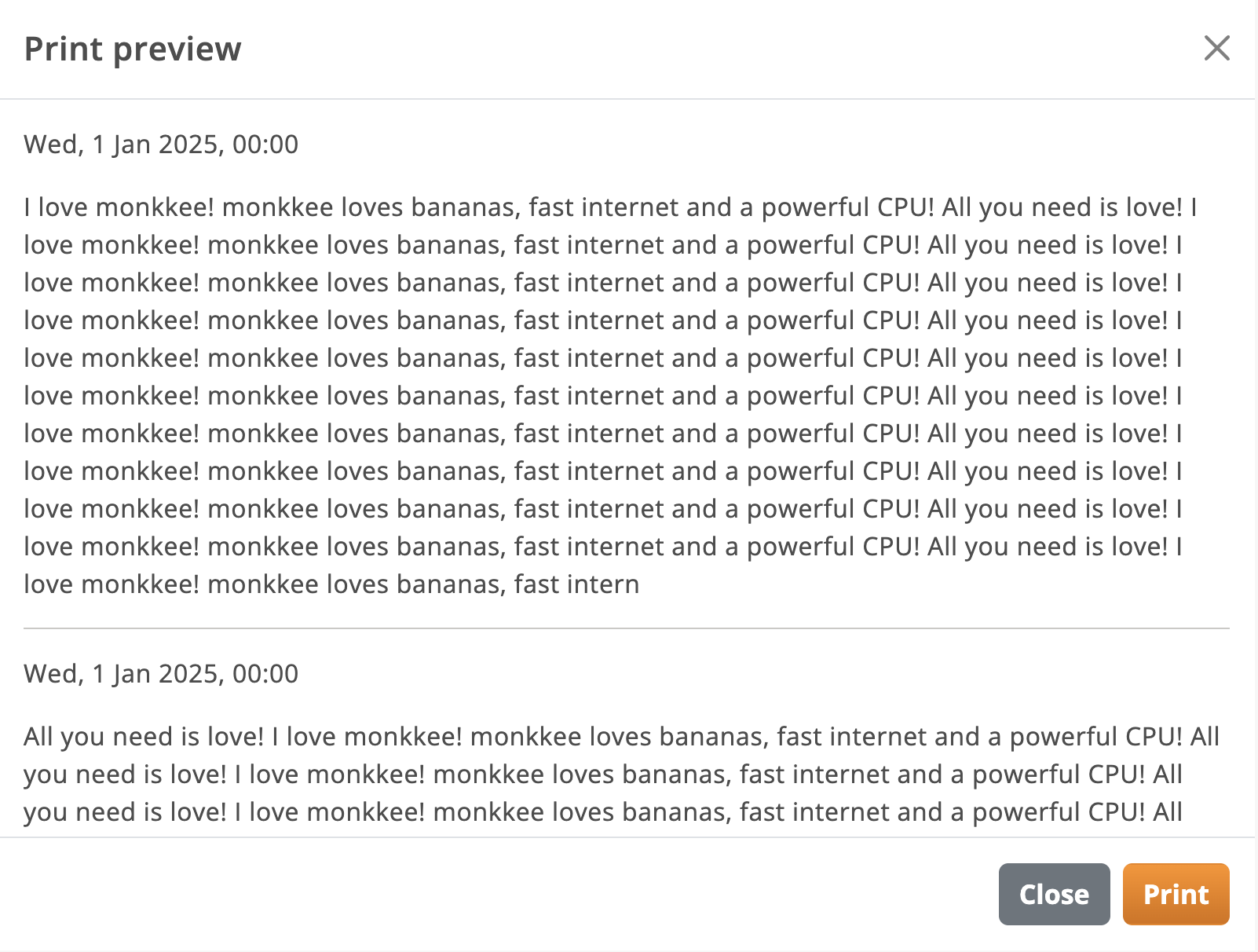
Print preview for your selected entries
Saving as PDF via the print dialog is the preferred way to create PDFs. The PDF export path below is deprecated.
Print multiple entries
You can use the bulk editing feature to print multiple entries at once:
- Open the entry list.
- Select the desired entries using the checkboxes. Use the checkbox in the toolbar to select all currently visible entries; if needed, you can then select all existing entries.
- Click Print in the toolbar.
- Your browser's print dialog opens – print the entries or save them as PDF.
You can find out more about bulk editing in the article Bulk editing.
Export
The export currently only works via Settings -> Export.
You can choose different formats: HTML, JSON and Markdown.
Legacy Formats / Deprecated: PDF, XML.